Calendar View
Calendar View
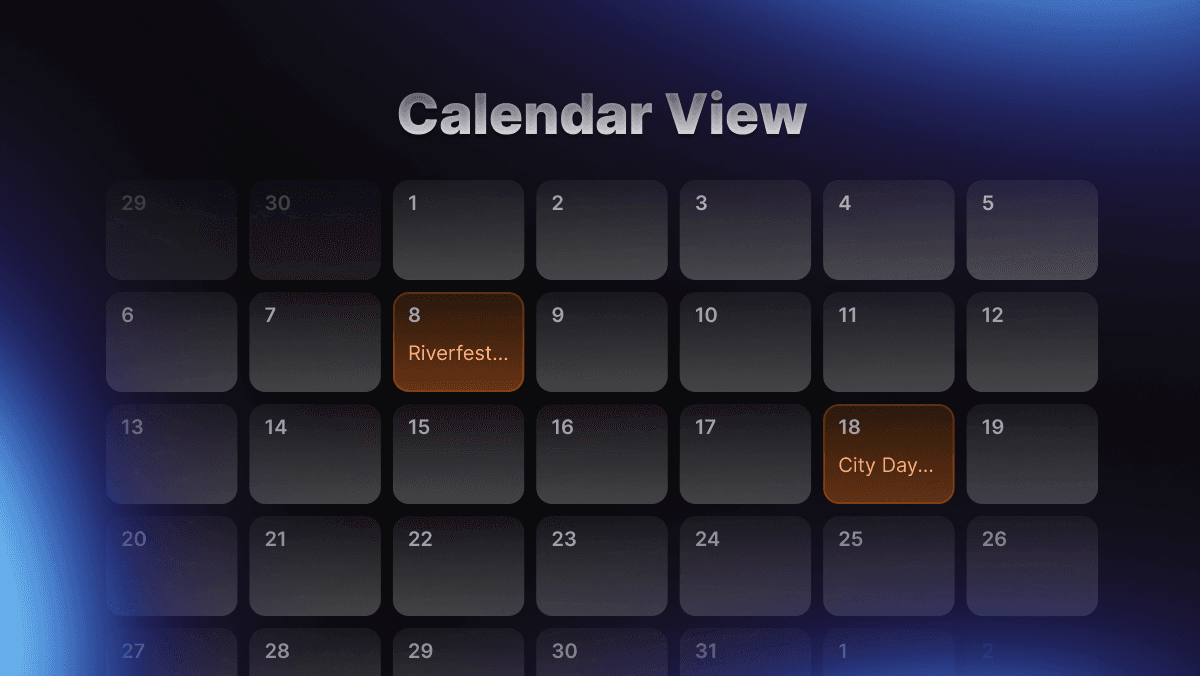
The dashboard now has a third layout option: Calendar View. Switch to it using the view switcher in the top right corner of the dashboard.
What It Shows
Projects are placed on the calendar by their display date and time. Each event shows the project name and start time. Navigate between months using the arrow controls, or jump back to the current month with the Today button.
Projects Without a Display Date
At the top of the calendar, a count shows how many projects are missing a display date. Clicking it opens a list of those projects, each with a shortcut to their settings so you can add a date and get them on the calendar. If you have projects sitting in Draft that have never had a date assigned, this makes it easy to work through them.
Setting a Display Date
Display date and time are set in Project Settings under the Details tab. Once added, the project will appear on the calendar automatically.